Work Program Job Management
Overview
The Work Program Job Management page allows you to create, edit, and manage job postings for the student work program. This is where you define available positions that students can apply for.
Getting Started
Access this page through the Work Program Menu under "Work Management". You'll see a comprehensive table listing all current job postings with their details and status.
Job List View
Understanding the Job Table
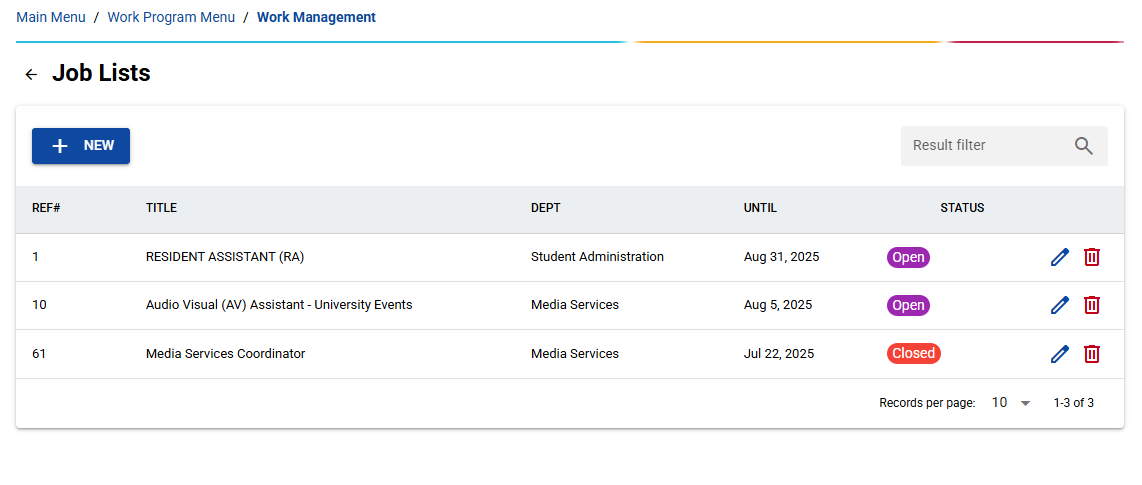
The main table displays all jobs with the following columns:
- REF#: Unique reference number for each job
- TITLE: Job position title
- DEPT: Department offering the position
- UNTIL: Application deadline date
- STATUS: Current job status (Open/Closed) with color-coded indicators
- Purple: Open positions accepting applications
- Red: Closed positions no longer accepting applications
- Green: Approved positions
Quick Actions
- Search Filter: Use the search box in the top-right to quickly find specific jobs
- Sort Columns: Click any column header to sort the data
- Pagination: Navigate through multiple pages if you have many jobs
Managing Jobs
Creating a New Job
- Access: Click the blue "New" button (available to supervisors only)
- Fill Required Information: Complete all sections of the comprehensive form
Job Creation Form Sections
Basic Information
- Job Title: Clear, descriptive position name
- Department: Select from available departments (cannot be changed later if students have applied)
Job Details
- Job Description: Use the rich text editor to provide detailed responsibilities
- Skills and Knowledge: List required skills and qualifications
Classification & Location
- Category: Choose from Level 1-4 classification
- Location: Specify work location
- Status: Set as "Open" or "Closed"
Timeline & Capacity
- Deadline: Set application deadline (cannot be in the past for open positions)
- Number of Students: Specify how many students you need
- Hours Per Week: Define expected work hours
Supervision & Requirements
- Requirements: Additional qualifications or special requirements
Editing Existing Jobs
- Edit Button: Click the pencil icon next to any job
- Department Lock: Note that department cannot be changed if students have already applied
- Status Validation: Open jobs cannot have past deadlines
Important Editing Restrictions
When students have applied for a job, certain limitations apply:
- Department Field: Becomes locked and cannot be modified
- Warning Icons: Orange lock icon indicates restricted fields
- Helpful Messages: Clear explanations about why changes are restricted
Deleting Jobs
- Delete Button: Click the red trash icon
- Confirmation: Confirm deletion in the popup dialog
- Warning: This action cannot be undone
Smart Features
Date Management
- Calendar Picker: Easy date selection with visual calendar
- Past Date Prevention: System prevents setting deadlines in the past for open positions
- Automatic Formatting: Dates display in user-friendly format (e.g., "Jan 15, 2024")
Status Logic
- Automatic Validation: System prevents illogical status combinations
- Smart Warnings: Alerts when trying to set conflicting status and deadline combinations
Responsive Design
- Mobile Friendly: Form adapts to smaller screens
- Touch Optimized: Easy interaction on tablets and phones
- Organized Sections: Information grouped logically for easy completion
User Role Permissions
Supervisors
- Can create new jobs
- Can edit all job details
- Can delete jobs
- Full access to all job management functions
Other Roles
- Can view job listings
- Can edit existing jobs (with restrictions)
- Cannot create new jobs
Tips for Effective Job Management
Best Practices
- Clear Titles: Use descriptive, specific job titles
- Detailed Descriptions: Provide comprehensive job responsibilities
- Realistic Requirements: Set appropriate skill levels for student positions
- Adequate Deadlines: Allow sufficient time for student applications
- Regular Review: Monitor and update job status as needed
Common Workflows
- Seasonal Planning: Create jobs before semester start
- Application Monitoring: Check application status regularly
- Deadline Management: Update or close positions as deadlines approach
- Capacity Adjustment: Modify student numbers based on department needs
Visual Indicators and Feedback
Status Colors
- Purple Chips: Open positions
- Red Chips: Closed positions
- Green Chips: Approved positions
Interactive Elements
- Hover Effects: Cards and buttons provide visual feedback
- Loading States: System shows progress during operations
- Success Notifications: Confirmations for completed actions
- Error Messages: Clear guidance when issues occur
This job management system streamlines the process of creating and maintaining student work opportunities while ensuring data integrity and user-friendly operation.